Problems with Nuitrack Avatar in Unity and Alignment Bone Length

Hello,

I’m developing an Unity application that is something like the Virtual Fitting Room, where a user can try on different outfits and look at himself on a big display that operates as mirror.
I’m facing problems with the Nuitrack Avatar component, especially when it comes to the “Alignment Bone Length” option. Since users of different body height can interact with the app (from kids to tall adults), the outits should scale accordingly and as far as I understand said option should allow this.

I’m trying to describe the problems as best as I can (when using Nuitrack Avatar with Alignment Bone Length and Bone Length Type Realtime):

  • Jittering of Bones/Joints during movement: When I’m moving around with the outfit tracked on me, especially when I’m moving forward and backward, some bones/joints are jittering and shaking/jumping around. Not very far, only circa an arm length and not all joints the same amount. The area around right arm/shoulder is often shaking the most. As soon as I turn off “Alignment Bone Length” this behaviour stops.
  • Wrong rescaling of joints: On my own models, as well as sometimes the demo models, I also have the problem, that the mesh is not rescaling correctly. For example, some body parts are getting very small and some parts - especially neck and head - get extremely big. For example, if I look at the Transform component of the neck joint on my own models, the scale gets set to 2-3, which makes the head extremely big. Similar things happen to other body parts.

I tried these things in various scenes, including my own scene, the Virtual Fitting Room Tutorial and the All Modules Scene.

My skeleton seems to be tracked correctly, for example if I run the Tutorials/RGBandSkeletons/, there my skeleton is tracked correctly. Without the Alignment Bone Length option, the tracking is also working mostly fine.
The jittering is happening everywhere, even in the example/demo scenes of the NuitrackSDK. The wrong rescaling is partially also happening in for example the All Modules Scene. There, the body of the mannequin is also a bit weirdly stretched. It’s not as extreme as in my own scene with my own models though, but it’s stil also happening there.

My system configuration is as following:

  • Windows 11
  • Sensor: Orbbec Femto Bolt
  • Sensor orientation: Portrait and mirror
  • Unity 6000.0.51f1
  • Nuitrack SDK v0.38.4
  • NuitrackSDK.unitypackage v0.38.4
  • OrbbecSDK v1.10.18
  • OrbbecViewer v1.10.2
  • Firmware Update sensor FemtoBolt_v1.1.2

I adjusted the nuitrack.config (RGB Width, Height and FPS) since I wasn’t able to set the correct custom resolution for portrait mode via the Nuitrack Manager in Unity. But it works with my adjustments in the nuitrack.config. I don’t know if this could correlate with my problems, so I’m just adding this here as info.

"OrbbecSDKDepthProviderModule": {
	"Depth": {
		"AutoExposure": true
	},
	"RGB": {
		"Width": 3840,
		"Height": 2160,
		"FPS": 30,
		"AutoExposure": true
	}
}

So my questions would be:

  • Where could the jittering come from? It’s weird that it also happens in the SDK’s example scenes.
  • If there’s no direct solution to the jittering, is there maybe a way to “smooth” this behaviour?
  • What could cause the incorrect rescaling of the meshes and bone joints when using Alignment Bone Length? I made sure to set up the bones and the distances between them in the model as close to the Avatar map in the Nuitrack Avatar component as possible.
  • Is there maybe a different approach to the rescaling of the bones to fit different people’s heights? One that is not using Alignment Bone Length? Or can we ignore the scale and just use the position to stretch the model?
  • Do you maybe have some more tips for modeling / setting up bones correctly that I might have missed?

I hope, my informations are a good base, if you need more insight, please let me know.

Also an additional question:

  • Is there currently a possiblity to read head joint rotation and move the head accordingly? Since some outfits also include hats and currently they’re not rotating correctly. I read that there’s currently no way to achieve this, but maybe there are some news or workarounds.

Thanks in advance!
Hello @Mokrim

Since users of different body height can interact with the app (from kids to tall adults), the outits should scale accordingly and as far as I understand said option should allow this.

Yes

Jittering of Bones/Joints during movement

Are you using AI tracking or regular? (check mark on Nuitrack Manager) Try to enable or disable
I also recommend reading this article General Preparations

Wrong rescaling of joints

Maybe you should try a different approach. Try the Fitting Room Tool (inside the Readme with tips). There is no scaling of each bone, just the clothes are stretched over the mannequin.

Is there currently a possiblity to read head joint rotation and move the head accordingly?

It’s not the most accurate result, but you can try using Face Tracking to rotate the neck or head bones.
https://github.com/3DiVi/nuitrack-sdk/blob/master/doc/Unity_Animated_Emoji.md

I don’t know if this could correlate with my problems

If you return the resolution settings to standard and rotate the sensor to landscape, will there be any changes?

Hello Stepan,

thank you for your reply!

I’m not using AI. When I compare between toggling it on or off, I find that when using AI the mesh behaves even weirder. So, I guess sticking to no AI currently works better for my use case.
I also read your linked article thoroughly and made sure, my sensor is set up correctly. The sensor will be located next to a 75 inch display in portrait orientation. The sensor is as close to the display frame as possible (in approx. 1.3 m height) and horizontally slightly turned to directly look at the user in about 2 m distance from the display (but even when facing the sensor directly, the problems persist).

I tried the Fitting Room Tool. Summed up, it creates similar problems. The jittering of some bones is still persistent (even for the mannequin) and also the mannequin gets scaled weirdly - for example the head gets quite smaller and the arms much thinner, but sometimes the hands also quite big/long.
You said that there’s no scaling of each bone, so maybe I’m misinterpreting something. But what I meant is that the GameObjects (which are the bones) also change their Transform->Scale property, which mostly works fine, but sometimes makes some parts of the mesh much bigger or smaller than others (as I wrote above with the mannequin).

Thanks for the tip with the Face Tracking. I’ll take a look at it later (for simplicity I’ll stick without hats for now).

Reverting the resolution settings and putting everything in landscape mode doesn’t affect the problems.

The problem with the jittering/shaking of some body parts is mostly concentrating on the right arm, which is consistent for all models (my own and the demo models). As I wrote at the top, I made sure to set up the sensor correctly and also to light the room evenly and well.
If we can’t find a direct solution to this phenomena on my end, is there maybe a quick way to “supress” this jumping as a temporary solution? Maybe something like lerping or damping when too big jumps in the position etc. are detected?

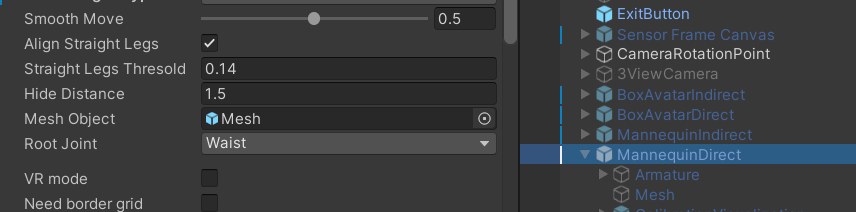
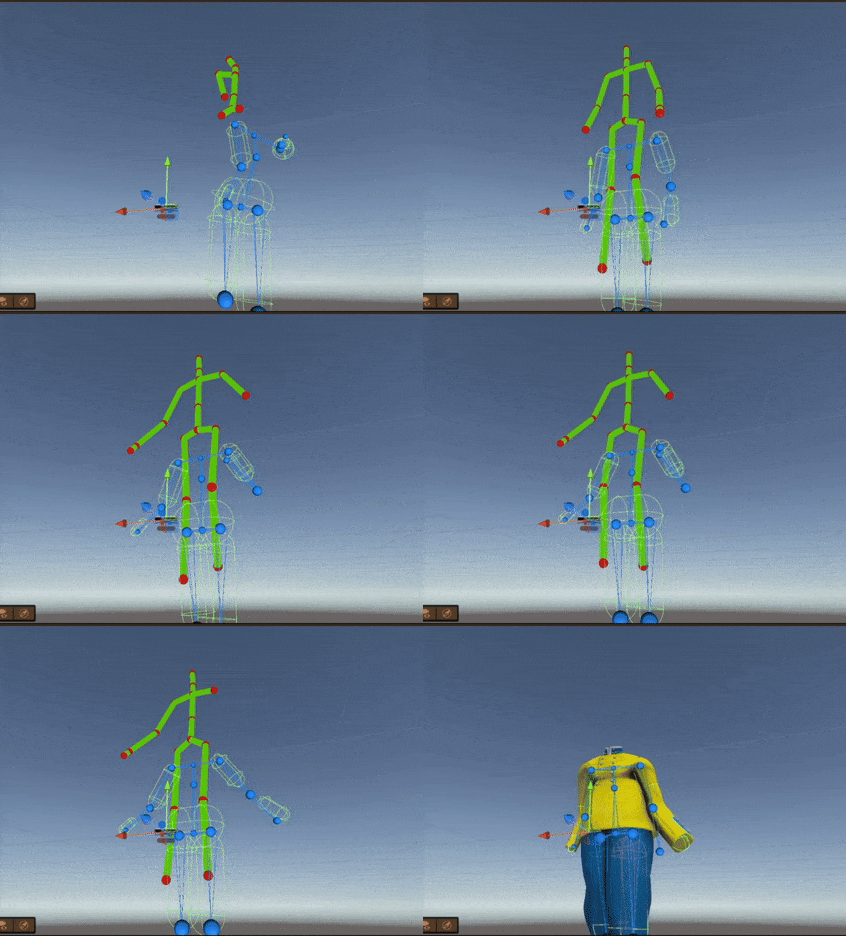
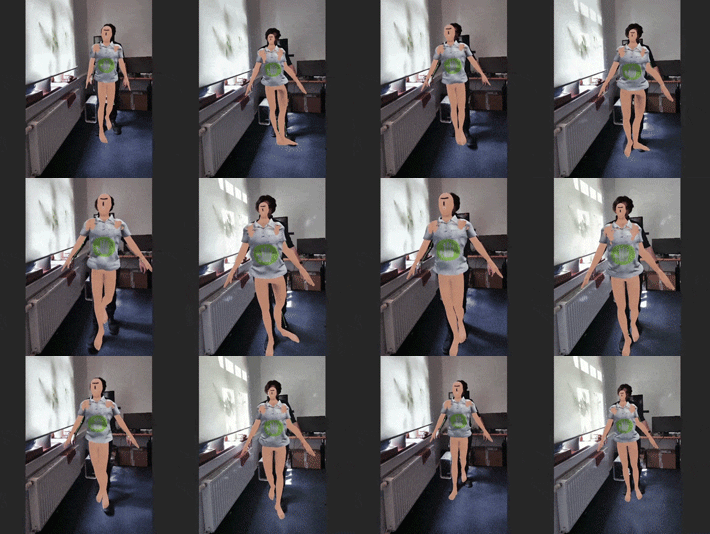
Here I added 2 GIFs showing the differences between Alignment Bone Length OFF (left GIF) and Alignment Bone Length ON (right GIF). I hope the problem is visible here. With OFF, the proportions fit better. With ON, the right arm as well as the shoulders are jittering, the head is much smaller and sometimes the hand bigger. Also notable that it’s mostly happening when moving back and forth.

AlignmentBoneLength

In this case, with the fitting room tool, you do not need to look too closely at the correct scaling of the mannequin, since it is hidden for a real fitting room, the main thing is that such effects should not be too strong. The point is that in this example, only the positions of the bones change for the clothing models themselves without scaling (the bones of the clothing model are “attracted” to the positions of the mannequin’s bones)

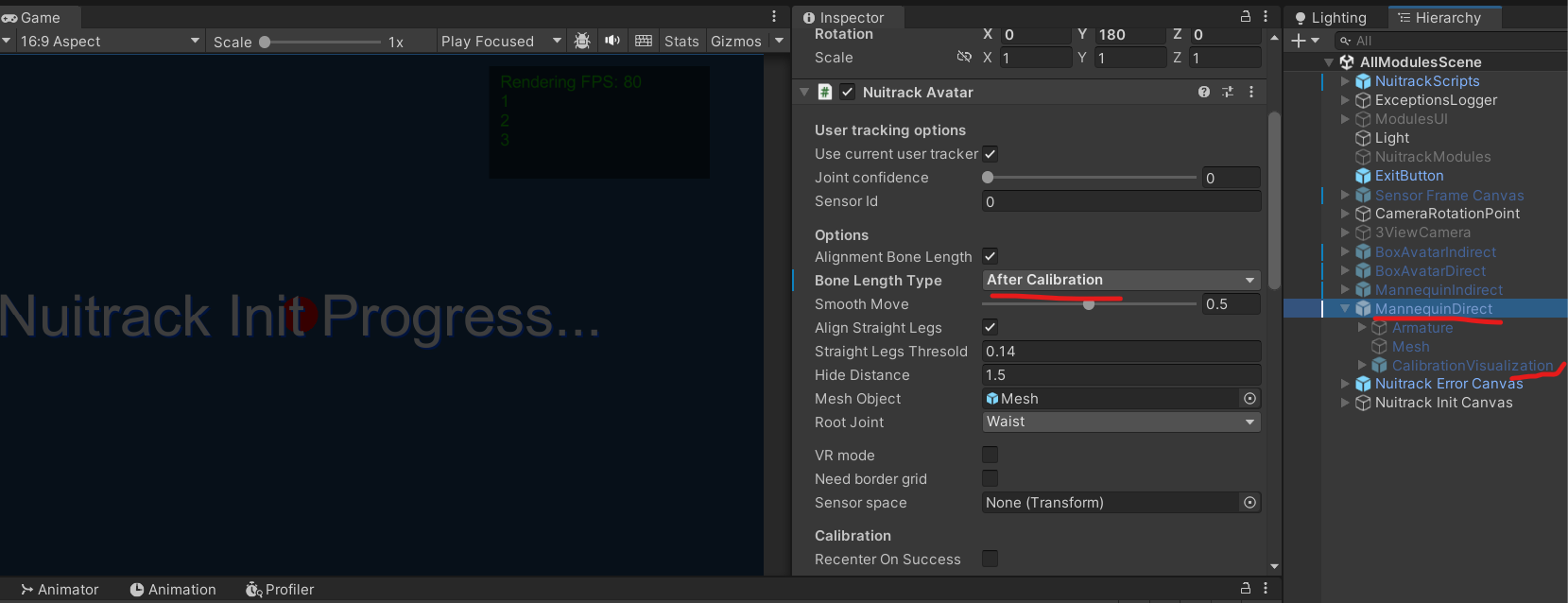
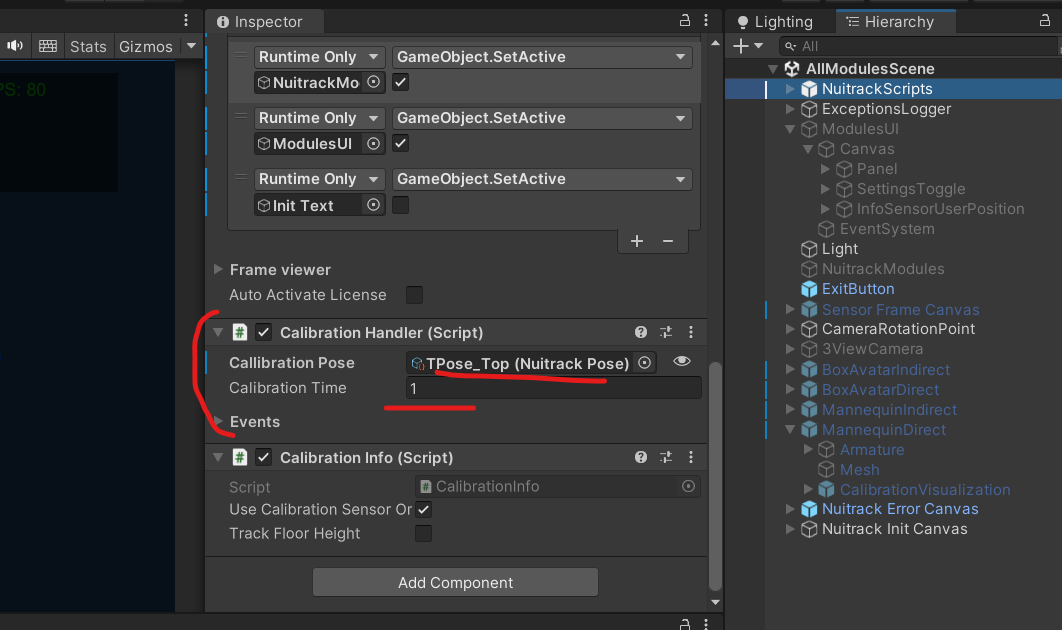
Considering that it only shakes with the “Alignment Bone Length” option enabled, you can try switching the “Bone Length Type” option so that the “fitting” of the model does not occur in real time, but after calibration. By default, you need to get into the t-position for 1 second (you can choose any position and any time, or even start calibration in some other way). For a quick test, you can run the AllModulesScene scene and select Man Direct instead of Skeleton there. (It is also recommended to add some kind of calibration indicator, such as the progress bar on the calibrationvisalization prefab. You can just throw it on scene too)

The “smooth move” option is also used to smooth out movements, but values that are too large are not very suitable for fitting rooms.

Thanks a lot for your answer and tips. I tried these things.

When I switch to “Bone Length Type: After Calibration” the shaking is gone. In general, this works quite good, especially in the demo scenes (AllModules etc.).

I still have problems in my own application though. There the calibration doesn’t seem to work correctly. In my application, all outfit GameObjects are disabled at the beginning. After calibration, the first outfit is shown (GameObject enabled) and the user can switch outfits via a selection menu, where the previous outfit gets disabled again and the next outfit enabled.
It looks like the calibration and the “Alignment Bone Length” only takes effect, when the outfit is visible/enabled. Is this correct? If I leave a outfit GameObject enabled at the beginning, it seems to correctly do the “Alignment Bone Length” once the user successfully completes calibration.

  • Do I have to change my application logic?
  • Do the outfits all have to be enabled the whole time or at least before calibration?
  • Or is it necessary to ask the user to calibrate himself again after an outfit is selected?
  • And do I need to calibrate for every outfit or is a one-time calibration at the beginning enough?

Also some other things that are different in my application (where I don’t know if these might be part of the problem(s)):

  • I don’t use “Use current user tracker” (it’s toggled OFF) since I’m setting the current user once the calibration is done. Is this okay or can this generate problems with “Alignment Bone Length”?
  • What is the value “Joint confidence” in Nuitrack Avatar used for? I saw that this value is at 0 in the demo scenes, but in my Nuitrack Avatar component it was set to 0.1 from the beginning.

Depending on the implementation. Alternatively, you can not turn off the entire game object, but disable only the “mesh” component, then the clothes will be visually hidden, and all background processes, including calibration, will occur.

What is the value “Joint confidence” in Nuitrack Avatar used for? I saw that this value is at 0 in the demo scenes, but in my Nuitrack Avatar component it was set to 0.1 from the beginning.

At the moment, this is only used if Align Straight Legs is enabled, as an additional check on the stability of the joints. If the Confidence value of the leg joint is <= “Joint confidence”, then the leg will behave unstably and must be reset to the default position.

I don’t use “Use current user tracker” (it’s toggled OFF)

This only means that the first user from the users list will be taken (i.e. if you have User ID = 1, this is the same thing)

Thanks for your reply!

Depending on the implementation. Alternatively, you can not turn off the entire game object, but disable only the “mesh” component, then the clothes will be visually hidden, and all background processes, including calibration, will occur.

This tip is a great idea. I tried this and now I’m not disabling the whole GameObject (with Nuitrack Avatar component etc.), but just the mesh and now the calibration seems to work correctly.
Still, even though the outfit now gets aligned, it sometimes isn’t the best result. Sometimes for example an arm is too big or too tall or rotated weirdly. Since it’s doing the Alignment Bone Length only once a user finishes the calibration, the outfit will stay like that for as long as the person is using the application.
Is there maybe a possibility to trigger this Alignment some additional times? Realtime doesn’t work in my case as we figured out. But maybe we can trigger the Alignment let’s say every few seconds or maybe a few additional times at the beginning? Would that be a good idea or not really?

This only means that the first user from the users list will be taken (i.e. if you have User ID = 1, this is the same thing)

Alright. I’m setting the User ID to the value of the user who completes the calibration correctly. At the beginning of my application, a user is asked to stand in a calibration pose and then this person gets registered as the player. I did this so if the sensor detects multiple people, only the one who is doing the calibration can be the player. Is this correct like that?

Of course, you can calibrate at any time, but there is no guarantee that this will be the most successful pose. So far, the best solution seems to be to simply recalibrate (just need to get into the t-pose again) if something doesn’t suit you after the first one.

Is this correct like that?

If everything is working correctly, then yes. But you need to remember that the userId may change at some point (if there is only one person in the frame, then no problem). Alternatively, you can superimpose an avatar on the closest or most central user.

Okay. Well, I didn’t mean an extra calibration with going in calibration pose again though. I rather meant something like the Alignment Bone Length Realtime, but not as Realtime, but rather as a few additional times. But without going in calibration pose again and just when the user is standing there and using the application (like Realtime would do). Would that be possible? To let’s say trigger this Alignment via code at any given time?
Or did you mean that recalibrating in another pose (like standing normally) instead of a t-pose would be no good idea, since the result wouldn’t be as good as in a clear pose? But shouldn’t this be no problem when using Realtime Alignment Bone Length?

Or did you mean that recalibrating in another pose (like standing normally) instead of a t-pose would be no good idea, since the result wouldn’t be as good as in a clear pose?

Yes. If you recalibrate periodically, then at the time of calibration the person may not be in the best position, there may not even be some observation points.

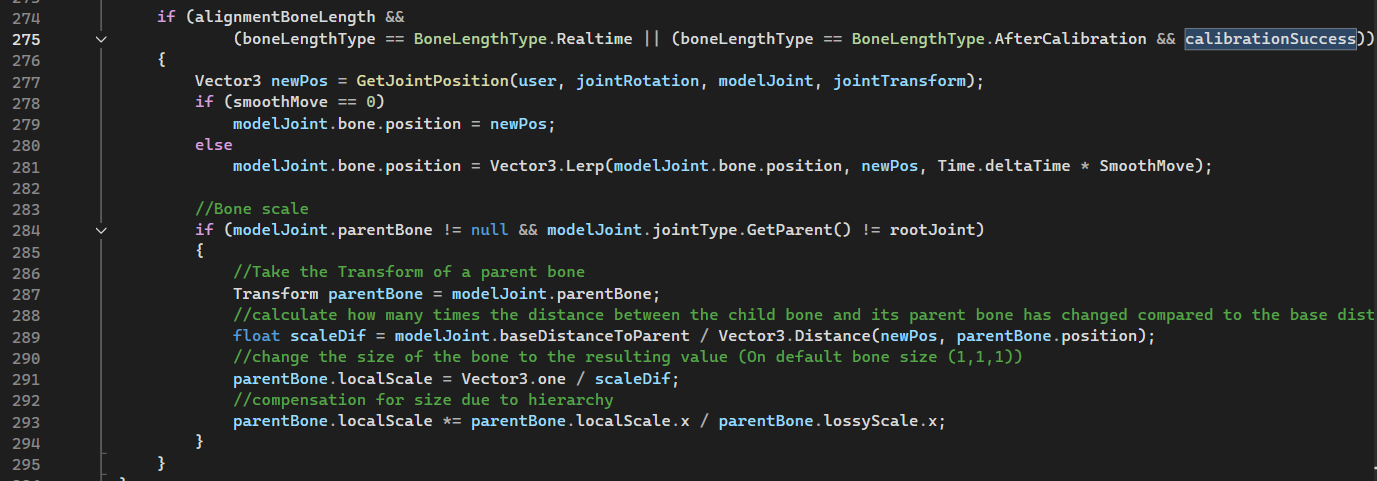
Technically, it is not difficult to implement autocalibration at any time:

In NuitrackAvatar.cs, it is executed after calibrationSuccess = true

But shouldn’t this be no problem when using Realtime Alignment Bone Length

At some point, for various reasons, a joint may not have sufficient observability (overlap, sensor specifics, etc.) for its position to be clearly defined. Then the joint may lose stability for a couple of frames, and then the joint’s position will shift unpredictably. When working with “AfterCalibration”, we use positions only once, and then we work only with rotations.

Okay, thanks again for your response!
We installed our application at our customer’s site and unfortunately encountered some additional problems. Hopefully, you can help us with these as well.

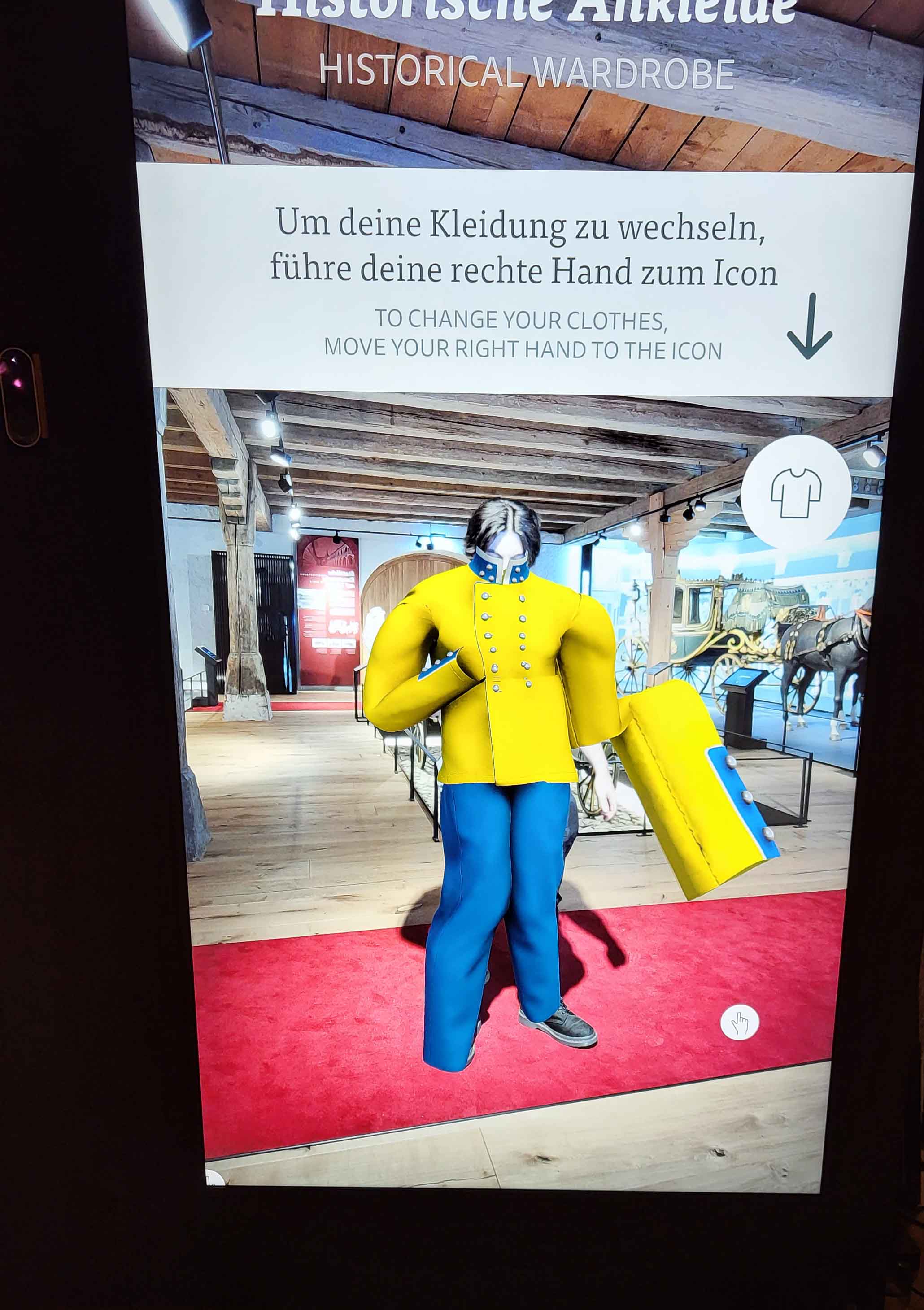
  1. The user’s mesh sometimes gets stretched in a very strange way. For example, the arms or legs may become extremely long/huge, or the upper body looks squished together.
    From my testing, it seems to be related to calibration and the NuitrackAvatar bones.
    When a user leaves the screen, the bones of the NuitrackAvatar component (the blue dots and lines of the bones that appear in the scene view when the object with the component is selected) remain in the scene and deform slightly (since they lose tracking of the user). When the user re-enters, the bones usually reattach to the user and reorganize correctly (like a human body). However, sometimes they stay deformed and continue following the user in this distorted state. If the user then performs calibration, the clothing mesh becomes stretched in a very unnatural way (because the bones are already misaligned).
    What could be causing this issue?
    The lighting and background conditions at the customer’s site might not be the most ideal one for the sensor, but we made sure the user’s standing area is properly illuminated. I also sometimes can reproduce this behaviour in the office, where lighting condition etc. is better. Also it’s the same regardless of whether the user is facing the sensor directly or standing slightly sideways.
    Is there perhaps a way to “reset” the NuitrackAvatar bones (maybe once a user enters the scene, to “force” them in human form)?
    In the attached image you can see, how the mesh gets distorted at the right arm, sometimes it’s even more.

  2. Regarding the exposure setting of the RGB image: In the nuitrack.config we can set AutoExposure to true or false. Is there a way to control the exposure level if we set it to false? With true, the exposure of the RGB image is not very good, so we’d like to know if it can be set manually.

Thanks in advance!

1 In general, when re-entering in this case, the positions and scaling of the bones of the skeleton should not change. Try adding a 3D skeleton (green with red balls) to the scene instead of (or together with) clothes, and try to move and get into a calibration pose. Will the joints (red balls) disappear frequently or behave erratically? If a joint “flies away” or disappears at the time of calibration, then after calibration, some element of clothing may stretch (or flatten). Also try to output depth frames instead of RGB images and check under what conditions (lighting, position in the room) it will be most stable (the fewer holes, the better). There are also general rules for improving tracking.nuitrack-sdk/doc/General_preparations.md at master · 3DiVi/nuitrack-sdk · GitHub)

Is there perhaps a way to “reset” the NuitrackAvatar bones (maybe once a user enters the scene, to “force” them in human form)?

I think the easiest way is to create your own class based on NuitrackAvatar (or make changes directly to it). And write down all the necessary logic there. For example, depending on the number of tracked users, hide or show clothes. And when clothes appear, reset the local positions (now saved at the start in the jointsDefaultPos list) and the sizes of the bones of the skeleton (the list of standard bone sizes probably should not appear, since all bones should be equal to (1, 1, 1) by default and you will just need to set the same, but just in case, check the sizes for your model)

2 If you have an Orbbec Sensor, you can try using the vendor parameters to fine tune it. Notion

Also, which sensor and algorithm are you using (Classical or AI)?

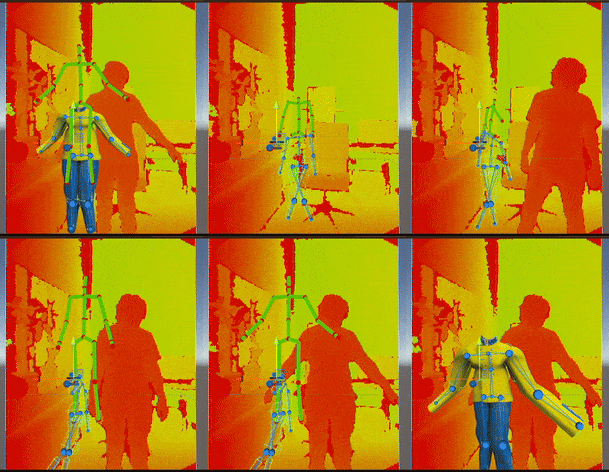
I added the 3D skeleton to see how it behaves. Usually it is following me correctly (asides from the slight vertical offset), but sometimes some bones get lost, for example an arm. In the following GIF you can see how I’m trying to calibrate in an A-Pose, but it seems to lose tracking of my arm? When the bones of the 3D skeleton are gone, you can see how after calibration and after the outfit is shown, the right arm is slightly stretched.

skeleton_calibration_error

In another test, I activated the depth frame to test what is happening there. I also encoutered another problem here, which seems to be a different problem than the one from above (but both problems produce these stretched meshes). Here, the green 3D skeleton is following the user quite normally when re-entering the scene, but the Nuitrack Avatar bones don’t get applied to the user’s body. They just stay there in the scene. When now calibrating, the outfit is stretched even more, as you can see in the GIF.

skeleton_calibration_depth_error

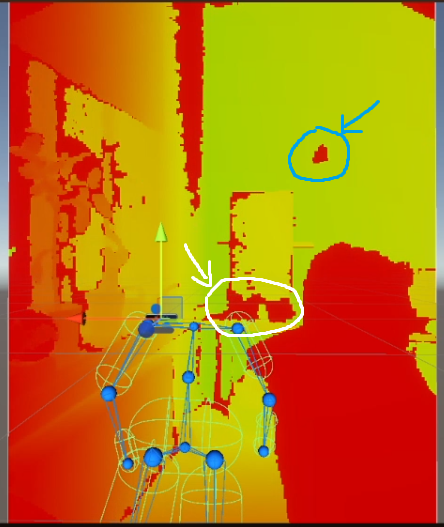
When checking the depth view inside Unity I sometimes see wrong interpretations of the room’s depth. In the attached image you can for example see several things. One thing (white circle) is an object in the back (a display), where it’s case is shown “closer” (red) according to the depth colors. Also the corner of the wall in the back in the center of the image, which is also red. Another thing (blue circle) is an artifact, which I see every now and then flying over the screen from one end to another. Are these things “okay” or should I already worry about that?

I’m trying to implement a reset method inside NuitrackAvatar.cs to reset joint position, rotation and scale, which is working in principle (it is setting the bones of the Nuitrack Avatar component in a basic T-Pose like at the start of the app). But it seems that it doesn’t necessarily help with the problems from above. Maybe I’m calling it at the wrong place (currently when a user leaves the screen) or it’s not doing the needed resetting steps.
At least I don’t think that this is solving the problem from the 2nd GIF where sometimes the Nuitrack Avatar doesn’t get applied to the tracked user at all.

Also thanks for the tip with the sensor vendor parameters for fine tuning the exposure. Altough I had to make these changes in the Orbbec Viewer software, since the vendor parameters didn’t take any effect when adding them to the nuitrack.config as described in the linked tutorial.

I’m using an Orbbec Femto Bolt and am not using AI, since AI didn’t work for me (the bones are shaking and rotating completely weirdly) so I stick to classical.

Hello @Mokrim

We have emailed you, please check it.